ImTOO Software
Multilingual Contact Us Site Map
Professional DVD Ripper , DVD Creator , DVD Copy Software , CD Burner
Audio Converter , 3GP / iPod / PSP / Zune / Video Converter
Sony PS3 - PLAYSTATION 3
New iPod Family and iTunes 7 Microsoft Xbox 360 with HD-DVD Player
ImTOO iPod Movie Converter Guide FAQ

ImTOO iPod Movie Converter is a powerful iPod Movie Converter which can convert almost all popular video formats to iPod MPEG4 video and iPod audio such as MP3, AAC, M4A. It can support Video iPod 30GB/80GB with resolution of 640 by 480 pixels for MPEG-4 Video, and iPhone mobile. Here is the step-by-step guide and we hope that it can be helpful for you.

New features in 3.1 version:

  1. The user interface is more friendly.
  2. It supports APE, CUE decoding and audio CD ripping.
  3. The wizard has been designed and added for beginners guiding the conversion.
  4. Zoom and split functions were added in this version.
  5. You can make the output file overwrite the original or rename to keep it.
  6. The output file name can be specified.

How to convert AVI to iPod, MPEG to iPod, AVI to MP4 fast and easily with excellent quality? The following is a step by step guide to solve these problems:

1. Run the software

Download, install, and run ImTOO iPod Movie Converter. Below is the first interface.

2.Load the file(s)

Add video or audio files you want to convert by clicking the "Add" button in the main interface or choose "Add..." in the "File" menu.

Tip: You can play the source files in the right-bottom preview window. Just click the icon to play it, and if needed, you can use buttons individually to control the playing. Please Note: This function is only for preview purpose

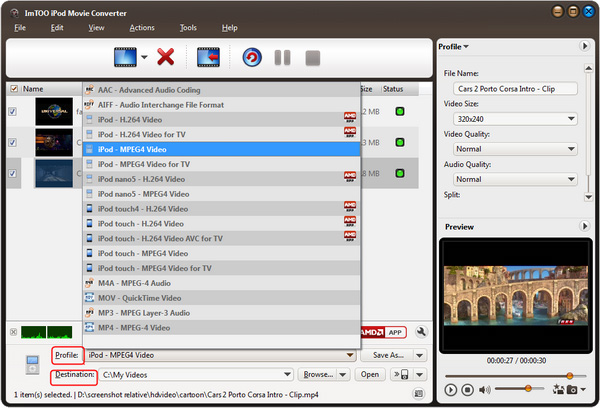
3. Select the target output format

In the "Profile" drop-down list, choose any format you want. All the target formats are shown in the dropdown list.

Tips:

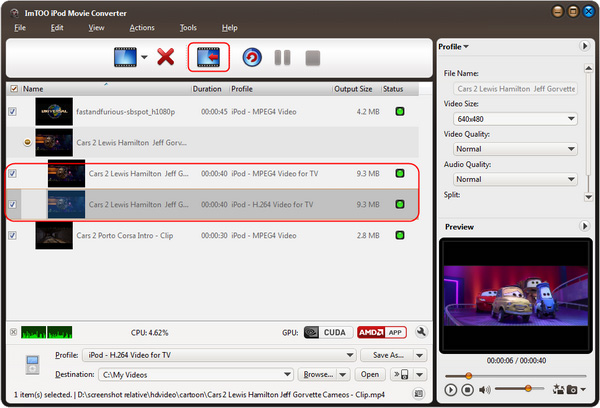
1) The software allows you to set different output formats for different files, depending on what you like.

2) All encoders/codec are built-in in this video conversion software. You can convert all supported formats once download the program.

3) It supports multithreading and batch conversion. Click "Tools > Preferences", and set the following preferences.

Just check all files you want to convert, ImTOO iPod Movie Converter will automatically convert them one by one, even if these files use different settings.

4) You can view the detailed information about the file loaded. Select a file and click "View > Show File Information", or right click the file and click "Show File Information" in the right-click menu, you will see the detailed information listed as below.


4. Set the output folder

Click the "Browse..." button or directly enter a path in "Destination" box.

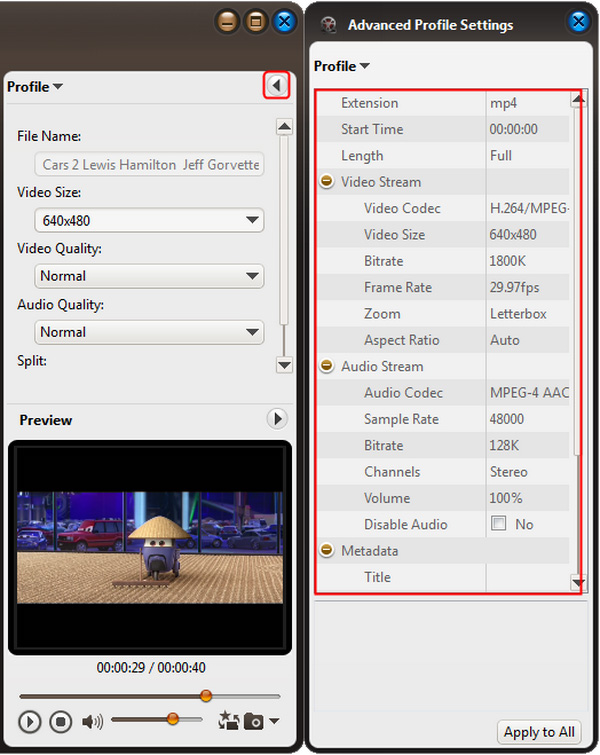
Tip: After selecting certain output format, the right panel will show general standard of the format. By clicking certain setting, you may specify it. Or just keep the default settings.

5. Adjust output settings

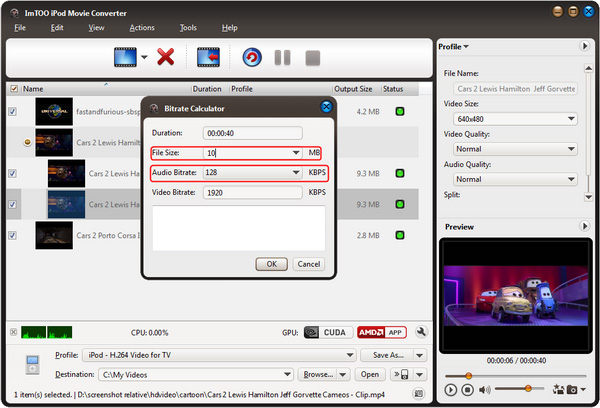
There are detailed output parameters on the right panel for you to set. After choosing the profile, you can adjust the settings on the right panel according to your own needs. Or just keep the default settings.

Tips:

1) You can convert any segment by setting the start time and duration at will. For example, if you want to rip a segment from 00:02:00 to 00:03:20, just click "Duration" to specify the length as 00:01:20, and click "Start time" to set the start time as 00:02:00.

2) For sync problem, you may lower down the video bit rate. You can also try to solve the problem by adjusting the frame rate.

3) Below the "Profile", there are several "Zoom" and "Split" modes for you to choose.

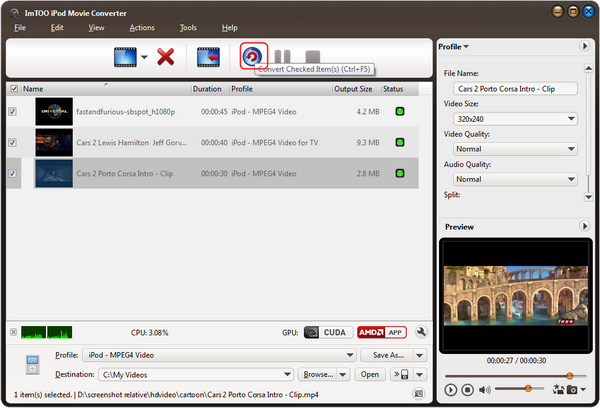
6. Start to convert

Now, all things are ready, just click the "Encode" button to start conversion.

Note: All item(s) checked will be converted. If you only want to convert certain item(s), check it/them, click "Encode", and then Xilisoft DVD iPod Movie Converter will convert them one by one.

After a moment, the files will be successfully converted to iPod MP4 format or any other format you set.

7. Put the files in your iPod

Click the "open" button next to the "Browse…" button to browse the output files.

Locate the converted file in the destination folder, and drag them to your iTunes.

If you don't have an iTunes yet, please download it free at: http://www.apple.com/itunes/download/.

Now, what should you do next? Just enjoy your movies and music on your iPod to the top of your bent!

Home | Site Map | Affiliate | Contact
© 2002-2008 ImTOO Software Studio. All Rights Reserved

ImTOO focus on Microsoft's Zune ImTOO Zune Video Converter ImTOO DVD to Zune Converter ImTOO Zune Converter Suite New iPod Family and iTunes 7 ImTOO DVD to iPhone Converter