




-
- iTransfer Platinum Mac

- iPhone Transfer Platinum Mac
- iPad Mate Platinum Mac

- PodWorks Platinum Mac
- iPhone Ringtone Maker Mac
- iPhone Transfer Plus Mac
- iPad Mate for Mac
- PodWorks for Mac
- iPhone Contacts Transfer Mac
- DVD to Video for Mac
- DVD to MP4 Converter for Mac
- DVD to iPhone Converter for Mac
- Blu-ray to Video Converter for Mac
- DVD to iPad Converter for Mac
- DVD to Audio Converter for Mac
- DVD Creator for Mac
- Video Converter for Mac
- MP4 Converter for Mac
- 3D Movie Converter Mac
- Video Editor 2 for Mac
- Audio Converter Pro Mac
- YouTube Video Converter for Mac
- Download YouTube Video for Mac
- YouTube HD Video Downloader Mac
- YouTube to iTunes Converter Mac

- YouTube to iPhone Converter Mac
- HEVC/H.265 Converter for Mac
- iTransfer Platinum Mac
- More

AVI to iPad: How to convert AVI to iPad video format? 

My friend just bought an iPad 4 to watch wonderful movies with AVI format. But unfortunately, she found that iPad 4 cannot play AVI video. For this case, we need a third-party program to convert the AVI to iPad 4 compatible video format- MOV, M4V or MP4.
To complete the conversion with highly speed, we recommend ImTOO iPad Video Converter—a handy software for iPad users to convert multiple video formats including AVI and AVI HD to iPad video format.
Mac users please download the ImTOO iPad Video Converter for Mac from here.
Guide: How to convert AVI to iPad?
Step 1: Download and Install.
Download the software according to your OS. Install and run it.
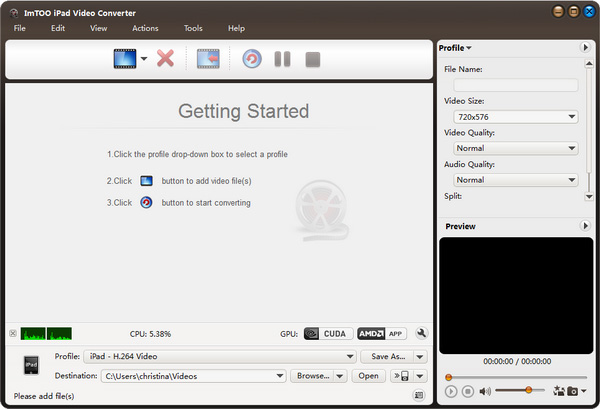
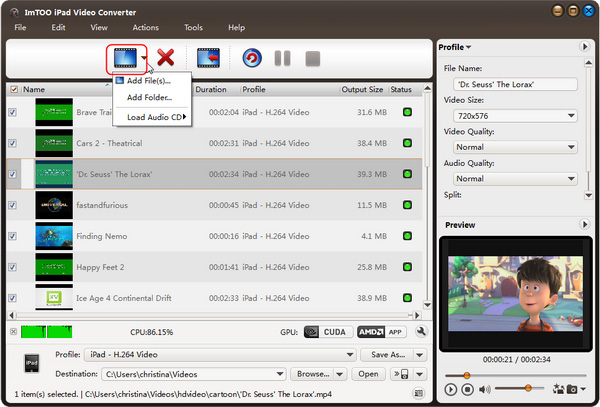
Step 2: Load AVI files into the iPad Video Converter.
Click "Add File(s)" button on the main interface and choose a loading method you like:
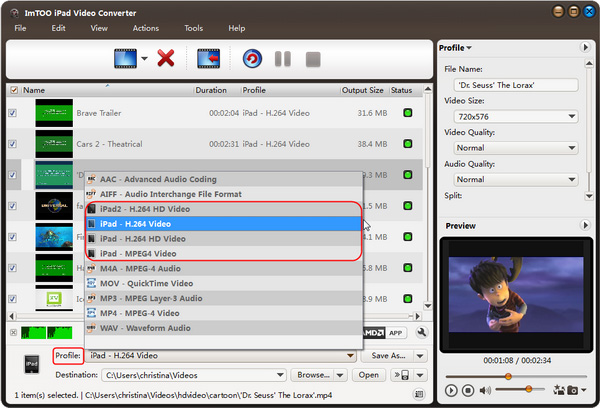
Step 3: Output Settings.
Click "Profile" drop-down list to select an iPad video format as your output video format.
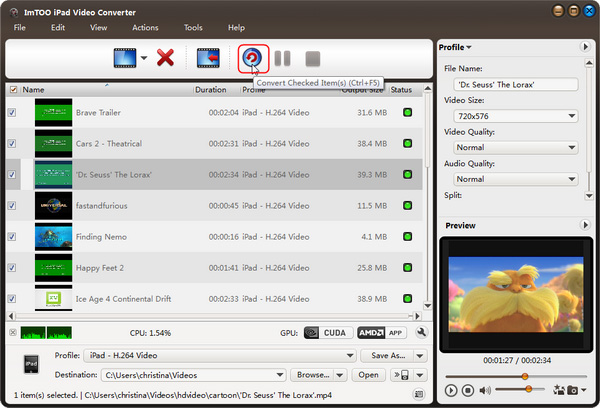
Step 4: Convert.
Click "Convert" button to start your AVI to iPad video conversion.
OK, done.
Now you can eject your iPad from your computer and watch videos on your iPad.
What is AVI?
Audio Video Interleave, known by its acronym AVI, is a multimedia container format introduced by Microsoft. AVI files can contain both audio and video data in a file container that allows synchronous audio-with-video playback. Since AVI is a commonly used file container, you may have many .avi files stored on your computer. We know that iPad doesn't support AVI video format, so we have to convert AVI videos to iPad format videos before transferring them to iPad.