



-
- iTransfer Platinum Mac

- iPhone Transfer Platinum Mac
- iPad Mate Platinum Mac

- PodWorks Platinum Mac
- iPhone Ringtone Maker Mac
- iPhone Transfer Plus Mac
- iPad Mate for Mac
- PodWorks for Mac
- iPhone Contacts Transfer Mac
- DVD to Video for Mac
- DVD to MP4 Converter for Mac
- DVD to iPhone Converter for Mac
- Blu-ray to Video Converter for Mac
- DVD to iPad Converter for Mac
- DVD to Audio Converter for Mac
- DVD Creator for Mac
- Video Converter for Mac
- MP4 Converter for Mac
- 3D Movie Converter Mac
- Video Editor 2 for Mac
- Audio Converter Pro Mac
- YouTube Video Converter for Mac
- Download YouTube Video for Mac
- YouTube HD Video Downloader Mac
- YouTube to iTunes Converter Mac

- YouTube to iPhone Converter Mac
- HEVC/H.265 Converter for Mac
- iTransfer Platinum Mac
- More
ImTOO MPEG Encoder Standard Guide

This tutorial is for ImTOO MPEG Encoder Standard users to show you how to convert among multiple video files step by step.
Step 1: Start ImTOO MPEG Encoder Standard and add File
Click "Add File" button on the toolbar or "File > Add File" to load files.
Step 2: Choose output format
Choose the file, click "Profile" drop-down button to choose the formats you need, then click "Browse" button to choose destination folder for saving output files.
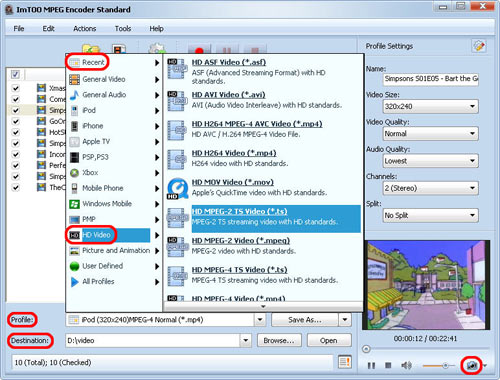
Tip1: We provide abundant profiles sorted by various popular devices, especially all-around HD video formats are supported.
Tip2: Many options for you to choose. The "Recent" option will record your recent using automatically and it is convenient to be used afterward.
Tip3: Click "Snapshot" button on main interface to take a snapshot when playing the video and save them as common picture formats like BMP, JPEG, GIF, and PNG.
Tip4: If you want to do more with your video and audio files, please refer to the "More usage skills".
Step 3: Convert
After choosing the format, you only need to click "Convert" button on the toolbar to complete the task.
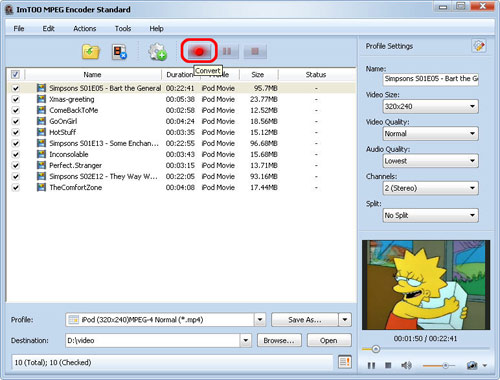
Ok, the above is the easiest function for your conversion. We provide you more abundant skills below!
More usage skills
|
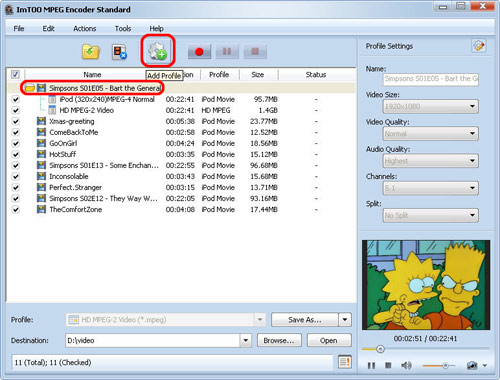
1. Add profile for the same video file |
|
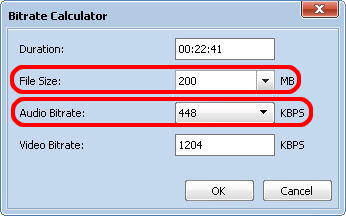
2. Exactly calculate tool |
|
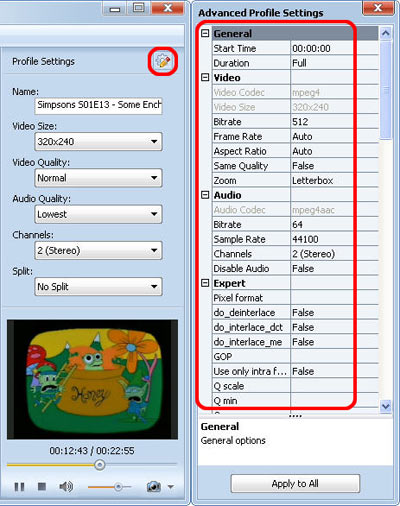
3. Divers parameters for setting |
Related Tips: