




-
- iTransfer Platinum Mac

- iPhone Transfer Platinum Mac
- iPad Mate Platinum Mac

- PodWorks Platinum Mac
- iPhone Ringtone Maker Mac
- iPhone Transfer Plus Mac
- iPad Mate for Mac
- PodWorks for Mac
- iPhone Contacts Transfer Mac
- DVD to Video for Mac
- DVD to MP4 Converter for Mac
- DVD to iPhone Converter for Mac
- Blu-ray to Video Converter for Mac
- DVD to iPad Converter for Mac
- DVD to Audio Converter for Mac
- DVD Creator for Mac
- Video Converter for Mac
- MP4 Converter for Mac
- 3D Movie Converter Mac
- Video Editor 2 for Mac
- Audio Converter Pro Mac
- YouTube Video Converter for Mac
- Download YouTube Video for Mac
- YouTube HD Video Downloader Mac
- YouTube to iTunes Converter Mac

- YouTube to iPhone Converter Mac
- HEVC/H.265 Converter for Mac
- iTransfer Platinum Mac
- More

How to convert Real Audio to MP3? 

You may have some Real Audio files saved in your computer hard drive. The question is many MP3 and MP4 players don't support Real Audio files. In order to put them on your player, you have to convert your Real Audio files to MP3 or other commonly used audio formats.
This step-by-step guide will show you how to convert Real Audio files to .mp3 files playable on device such as iPad, iPhone, iPod etc.
How to convert Real Audio to MP3
Tool Required: ImTOO Video to Aduio Converter
Note: If you're Mac users, please try the ImTOO Video to Audio Converter for Mac OS.
Step 1: Download the software. Install and run it.
Step 2: Import your Real Audio files into the converter. Click "Add" button to choose Real Audio files and click "OK".
Step 3: Choose files. After loading the source files, they will be displayed in the file list. Hold "Ctrl" button and left-click one by one to highlight files you want to convert.
Tip: How to listen to a Real Audio file?
Choose a file and click "Play" button under the right preview window.
Step 4: Set output file format. Click "Profile" drop-down button and choose "MP3 - MPEG Layer - 3 Audio (*.mp3)" option.
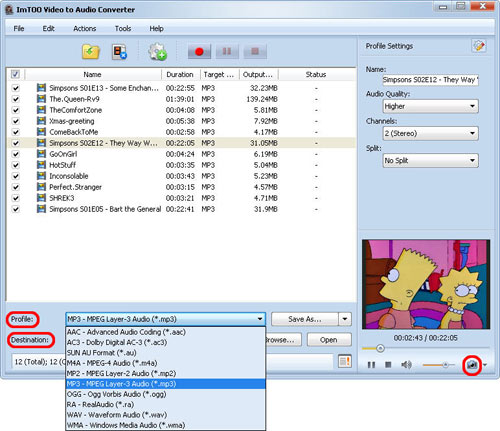
Step 5: Set output folder. Click "Browse..." button to choose output folder for saving your converted files.
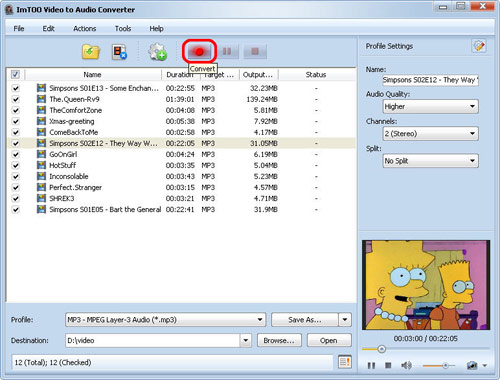
Step 6: Convert Real Audio to MP3. Click "Convert" button to start your conversion.
OK, done.
What is Real Audio?
RealAudio is a proprietary audio format developed by RealNetworks. It uses a variety of audio codecs, ranging from low-bitrate formats that can be used over dialup modems, to high-fidelity formats for music. It can also be used as a streaming audio format, that is played at the same time as it is downloaded. In the past, many internet radio stations used RealAudio to stream their programming over the internet in real time. In recent years, however, the format has become less common and has given way to more popular audio formats. It is used heavily by the BBC websites, though its use on the site is being phased out.