




-
- iTransfer Platinum Mac

- iPhone Transfer Platinum Mac
- iPad Mate Platinum Mac

- PodWorks Platinum Mac
- iPhone Ringtone Maker Mac
- iPhone Transfer Plus Mac
- iPad Mate for Mac
- PodWorks for Mac
- iPhone Contacts Transfer Mac
- DVD to Video for Mac
- DVD to MP4 Converter for Mac
- DVD to iPhone Converter for Mac
- Blu-ray to Video Converter for Mac
- DVD to iPad Converter for Mac
- DVD to Audio Converter for Mac
- DVD Creator for Mac
- Video Converter for Mac
- MP4 Converter for Mac
- 3D Movie Converter Mac
- Video Editor 2 for Mac
- Audio Converter Pro Mac
- YouTube Video Converter for Mac
- Download YouTube Video for Mac
- YouTube HD Video Downloader Mac
- YouTube to iTunes Converter Mac

- YouTube to iPhone Converter Mac
- HEVC/H.265 Converter for Mac
- iTransfer Platinum Mac
- More
How to update/import video to your iPod through iTunes? 
This Guide will show you how to update/import video to your iPod through iTunes.
Step 1. Connect your iPod to PC.
Step 2. Launch iTunes.
Note: You can free download the latest version of iTunes from http://www.apple.com/itunes/download/
The interface is as follows:
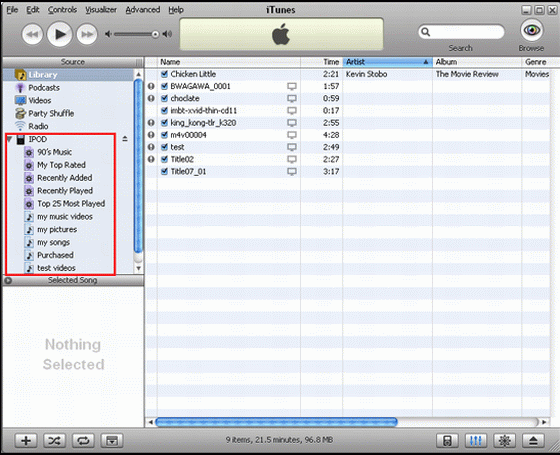
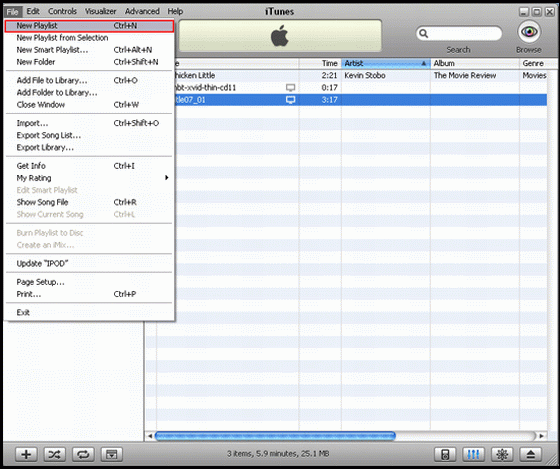
Step 3. We recommend that you create a new Playlist to place your iPod files.
Step 4. Find iPod mp4 files, and directly drag them into the playlist you created just now.
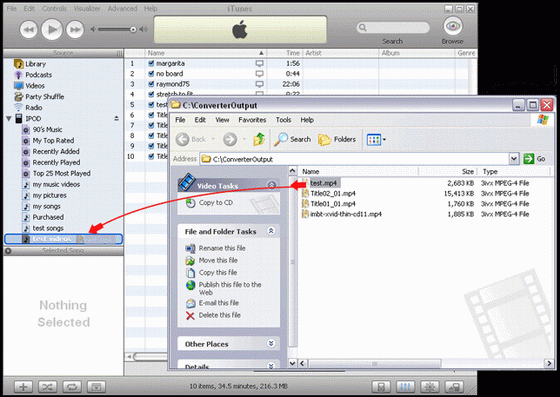
Step 5. If you have added the file to the library of your iTunes, you can drag it from library to the new playlist directly.
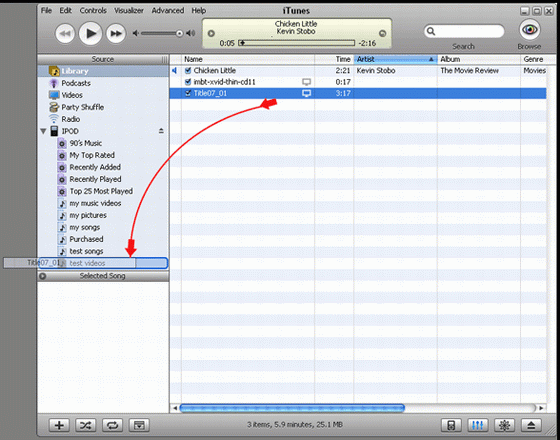
Step 6. Update your iPod. Click 'File -> update your iPod'. After updating, you can see the file list on your ipod. You can change the file name showing on iPod. Please right click the file, choose "Get info", and change the info of this file at "Info".
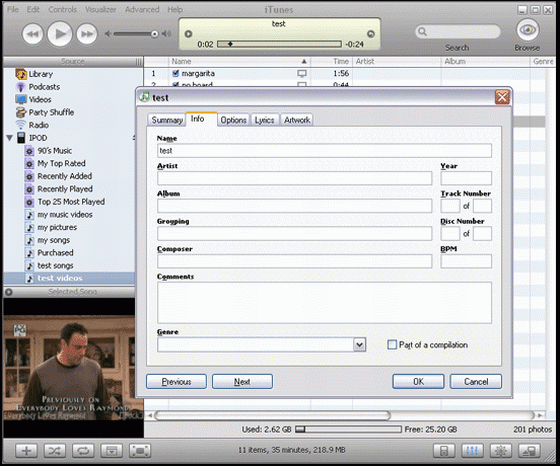
Ok, You have done!
Related Tips:
- How to transfer songs from iPod touch to computer?
- How to sync iPod songs to computer?
- How to copy playlist from iPod to iTunes?
- How to transfer movies to iPhone?
- How to backup iPhone music to computer?
- How to transfer videos from iPhone to computer?
- How to use iPhone ad portable hard disk?
- How to transfer photo from iPhone 3G to hard drive?
- How to move photo from iPhone to iTunes?
- How to view iPhone photo on PC?
- How to put movies, films on iPhone?
- iPod to iTunes
- iPod Manager
- iPhone Manager
- More Tips...